
Figma vs Sketch: From an Adobe user's perspective
As a UI/UX designer with a decade of experience solely using Adobe Photoshop and Illustrator, I've mastered these powerful tools to bring creative concepts to fruition. They've been pivotal in my professional growth, offering a robust platform for everything from intricate graphic designs to comprehensive user interface layouts. However, the evolving landscape of UI/UX design calls for continual learning and adaptation. To stay at the forefront of this dynamic field, I'm exploring new solutions to streamline asset transfer and enhance page layout efficiency. This journey is not just about adding tools to my arsenal but integrating them seamlessly with my established Adobe-based workflow, ensuring smooth transitions and sustained excellence in design.
Venturing beyond the familiar Adobe-centric landscape, this article aims to delve into Figma and Sketch, comparing and contrasting these two prominent UI/UX design tools from an Adobe user's perspective. The objective is to evaluate how Figma and Sketch measure up against the Adobe suite in terms of functionality, asset transfer ease, page layout efficiency, and overall workflow integration. This comparison seeks not only to identify each platform's strengths and weaknesses but also to understand how they might complement or enhance an Adobe-centric design process, thus enriching the toolkit of a modern UI/UX designer.
Adobe has long been a familiar and treasured tool in my UI/UX design journey, blending reliability and innovation in a way that aligns perfectly with my creative process. One particularly valued feature is Adobe's evolving sharing capabilities. While not always flawless, these capabilities mark a significant step towards collaborative design. The ability to directly share works-in-progress with team members and clients from the software itself enhances the feedback loop and fosters a more integrated design environment.
Another invaluable aspect of Adobe products is the capability to save designs as PDFs while retaining all vector-based data. This feature isn't just convenient; it's a vital part of my workflow. The universally accessible PDF format is ideal for presenting designs to clients who may lack specialized design software. Furthermore, the fact that these PDFs maintain their editable vector qualities is transformative. It ensures that designs are not only easily shareable but also remain fully editable for future modifications, allowing for the preservation of design integrity through all stages of a project.
These features, among others, underscore why Adobe continues to be a go-to choice for many designers, including myself. Its combination of robust functionality and user-centric innovations plays a crucial role in shaping and executing my creative visions.
Section 1: Overview of Figma and Sketch
Figma distinguishes itself in the UI/UX design landscape with its web-based interface and collaborative features, each offering unique advantages.
Web-Based Interface
Figma's web-based nature revolutionizes accessibility:
- Universal Access: Accessible from any computer with internet, Figma bypasses the need for high-end hardware or specific operating systems.
- Automatic Updates: The cloud-based structure ensures the latest features and bug fixes are available without manual updates.
- Integration Ease: Its compatibility with other online tools enhances functionality and versatility.
- Reduced Resource Demand: It is generally less demanding on individual computers than desktop applications, a significant advantage for designers using less powerful machines.
Collaborative Features and Real-Time Editing
Figma's collaboration tools are a major highlight:
- Simultaneous Editing: Multiple users can work on the same file concurrently, significantly reducing communication time and speeding up the design process.
- Direct Feedback: Stakeholders can provide immediate feedback within the tool, streamlining the review process.
- Version Control: Automatic tracking of changes and easy reversion to previous versions facilitate design evolution understanding.
- Design System Management: Figma excels at maintaining consistent design systems across various projects and teams.
Figma's combination of a web-based interface and collaborative features makes it an attractive choice for modern UI/UX design, especially in environments where collaboration and flexibility are crucial.
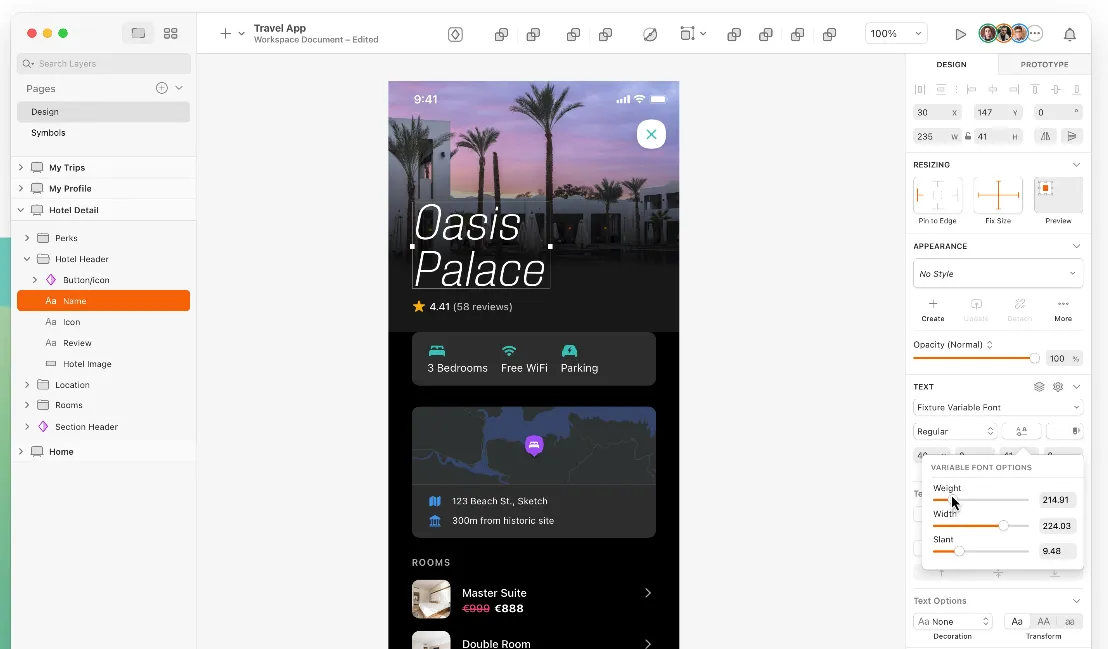
Sketch's Niche in UI/UX Design
Sketch has made its mark, focusing on vector design and user interface as a Mac-only application.
Mac-Only Application
- Optimized for macOS: Designed exclusively for macOS, Sketch offers optimized performance and integration with the Mac ecosystem.
- Accessibility Limitation: Its Mac-only status can be a barrier in collaborative environments with diverse operating systems.
- Familiar User Experience: For Mac users, Sketch provides a familiar interface, aligning with other Mac applications for usability and learning curve ease.
- Leveraging macOS Features: Sketch can utilize macOS-specific features and technologies, enhancing its functionality.
Focus on Vector Design and User Interface
- Design Precision: As a vector-based tool, Sketch is ideal for creating scalable, precise designs, essential for UI/UX consistency across different screen sizes.
- UI/UX Design Specialization: Tailored for UI/UX, its tools and features are optimized for this purpose, including plugins and integrations aimed specifically at UI designers.
- Workflow Efficiency: Sketch streamlines the workflow for UI/UX design, focusing on key tools and functions for this field.
- Tool and Service Integration: While not as collaborative as some web-based alternatives, Sketch integrates well with other tools and services like Zeplin and InVision for design handoff.
Sketch's Mac-only status and focus on vector design and user interfaces make it a powerful tool for UI/UX designers, offering specialized features that streamline and enhance the design process.
Section 2: User Interface and Usability Comparison
Comparing the user interfaces (UI) of Figma, Sketch, and Adobe tools like Photoshop and Illustrator is essential for understanding how they cater to UI/UX designers' needs. Each tool has a unique design philosophy and layout, influencing user experience and workflow efficiency.
Adobe Photoshop and Illustrator
- Complexity and Customizability: Known for their comprehensive interfaces, Adobe tools offer extensive customization, allowing users to tailor the workspace to their needs. This array of tools and features serves a broad spectrum of design needs, which can be overwhelming for beginners but powerful for experienced users.
- Menu-Driven Interaction: Interaction with Adobe tools often involves multiple menus and panels, offering depth for intricate tasks but potentially slowing down simpler processes.
- Adobe Ecosystem Integration: Being part of the Adobe Creative Suite, these tools provide seamless integration with other Adobe software, beneficial for a diverse design workflow.
Figma
- Simplified, Intuitive Interface: Figma's UI stands out for its simplicity and intuitiveness, less cluttered compared to Adobe, and thus easier for beginners.
- Collaboration Focus: The interface is designed for collaboration, with features like commenting and real-time co-editing integrated prominently.
- Web-Based Accessibility: As a web-based tool, Figma's interface is streamlined for browser use, influencing toolbars and menus' arrangement.
- Context-Aware Tool Options: Figma offers a more context-sensitive interface, adapting tools and options based on the selected object or task.
Sketch
- Mac-Centric Design: Sketch's UI, tailored for macOS, provides a familiar experience for Mac users, aligning well with the macOS ecosystem for seamless integration.
- Vector and UI Focus: Optimized for vector design and UI projects, its tools and panels are specifically designed for these tasks, making it less overwhelming for UI/UX design compared to more generalist Adobe tools.
- Streamlined Workflow: Sketch offers a more streamlined interface compared to Adobe, focusing on the accessibility of key tools and functions for UI/UX design.
- Plugin Integration: While Sketch has a simpler interface, it heavily relies on plugins for extended functionality, enhancing and complicating the user experience.
Adobe tools are powerful and highly customizable but can be complex and overwhelming. Figma offers a clean, collaborative, and intuitive interface, ideal for team-based and web-oriented design work. Sketch provides a streamlined, Mac-friendly UI, focusing on vector and UI design, balancing simplicity and functionality. The choice between these tools often depends on the specific needs and preferences of the designer, as well as the nature of the project and the working environment.

Section 3: Learning Curve for Adobe Users
Adapting to Figma or Sketch from Adobe products involves a learning curve, varying based on familiarity with design principles, adaptability to new interfaces, and specific platform features.
Transitioning to Figma
- Interface Familiarity: Adobe users might find some common ground in Figma's layout and tool functions, albeit in a more streamlined form.
- Simplified Toolset: While Figma's toolset is more limited compared to Adobe's vast array, it's more focused and easier to navigate for UI/UX tasks.
- Learning Collaborative Features: The biggest learning curve could be adapting to Figma's collaborative and web-based features, which differ from Adobe's more traditional, desktop-centric approach.
- Vector Design Approach: Those familiar with Illustrator's vector tools may find Figma's approach intuitive, though there are nuances in executing certain actions.
- Online Resources: Figma offers extensive online resources and a vibrant community, aiding the transition process.
Transitioning to Sketch
- Mac-Only Environment: Adobe users who aren't regular Mac users might find Sketch's Mac-centric interface and shortcuts challenging initially.
- UI/UX Specialization: Sketch, being more specialized towards UI/UX design than Adobe's generalist tools, provides a streamlined focus but might lack some features found in Adobe.
- Vector and Interface Design: The transition to Sketch's vector and interface design tools is generally smooth for Adobe Illustrator users, though tool behavior and shortcuts may differ.
- Plugin Reliance: Adobe users might need to adjust to Sketch's reliance on plugins for extended functionality, which can be both a strength and a learning curve.
- Community and Resources: Sketch has a supportive community, though Adobe users might find fewer resources compared to those available for Adobe tools.
Overall, while Adobe users will encounter a learning curve when transitioning to Figma or Sketch, their foundational design skills and familiarity with digital design tools will be beneficial. The transition involves adapting to new interfaces, workflows, and toolsets, with the extent of the learning curve depending on the specific features and focus of Figma or Sketch.
Section 4: Collaboration and Teamwork
In the realm of UI/UX design, effective collaboration and teamwork are essential. Figma and Adobe XD, both prominent tools in this space, offer distinct features to facilitate collaborative work.
Figma's Collaborative Features
- Real-Time Collaboration: Supports real-time collaboration, allowing multiple designers to work on the same file with instant visibility of changes.
- Web-Based Platform: Facilitates easy access for all team members, regardless of their operating system, making it universally accessible.
- Live Feedback and Commenting: Stakeholders can leave comments and feedback directly on design files, reducing the need for external communication tools.
- Version Control: Automatically saves design versions, crucial for managing design iterations and changes.
Sketch: Collaboration Limitations and Workarounds
Sketch, while a powerful UI/UX design tool, presents certain limitations in terms of collaboration, especially when compared to tools like Figma or Adobe XD. However, there are workarounds and external tools that can help mitigate these limitations.
Collaboration Limitations
- Platform Limitation: Being Mac-only, Sketch limits collaboration to users within the Mac ecosystem, which can be a barrier in environments with diverse operating systems.
- Lack of Real-Time Collaboration: Sketch does not support native real-time, multi-user editing, meaning designers cannot work on the same file simultaneously and see each other's changes in real time.
- File Sharing and Version Control: Manual sharing of Sketch files among team members is required, and maintaining version control can be challenging without an integrated system.
- Feedback Integration: There is no built-in system for live feedback within Sketch design files, which can complicate the feedback and review process.
Workarounds and Solutions
- Sketch Cloud: Allows designers to upload files for viewing and commenting, facilitating feedback and basic sharing, although it does not support real-time editing.
- Third-Party Plugins and Tools: Several plugins and external tools integrate with Sketch to improve collaboration, such as Abstract for version control and collaborative features, and Zeplin for design handoff and feedback.
- Version Control Systems: Implementing a version control system like Git, with appropriate plugins/tools, can help manage different versions of Sketch files, though it requires setup and management.
- Integration with Communication Tools: Integrating Sketch with communication tools like Slack can help streamline discussions and feedback about designs.
Section 5: Performance and Compatibility
Evaluating Figma and Sketch in terms of performance and compatibility is crucial, as it affects their efficiency in handling typical design tasks.
Figma
- Platform Compatibility: As a web-based tool, Figma works across different operating systems, including Windows, Mac, and Linux, offering broad compatibility for diverse teams.
- Performance in Browser: Figma's performance, dependent on the browser's capabilities and the machine's internet connection, is generally well-optimized for most tasks.
- Handling Large Files: Figma manages large files and complex designs well, with the cloud-based architecture reducing the load on local memory and processors.
- Offline Access: While Figma offers some offline features, its full functionality is best experienced online, requiring a consistent internet connection.
- Resource Efficiency: Figma is generally more resource-efficient on local machines, particularly beneficial for users with less powerful hardware.
Sketch
- Platform Limitation: Being exclusive to macOS, Sketch's compatibility is limited to Mac users, which can be a significant constraint in mixed-OS environments.
- Performance on Mac: Optimized for macOS, Sketch offers smooth and responsive performance, especially on higher-end Mac models.
- Handling Large Files: Sketch performs well with large files featuring numerous artboards and complex assets, though performance may vary based on the Mac's specifications.
- Offline Capability: As a desktop application, Sketch operates offline without issues, an advantage in situations with limited internet access.
- Resource Intensity: Sketch can be resource-intensive for complex projects, potentially affecting performance on older or less powerful Mac models.
Section 6: Pricing and Accessibility
The pricing models of Figma and Sketch impact their accessibility for different users and organizations. A comparison of their pricing structures reveals distinct differences:
Figma
- Free Tier: Figma's free version is attractive for individual users or small teams, offering most of the tool's core features with limitations on projects and collaborators.
- Professional Tier: This subscription-based tier is aimed at small to medium-sized teams, offering unlimited projects, version history, and advanced collaboration tools.
- Organization Tier: Targeted at larger organizations, this tier includes everything in the Professional tier, plus features like organization-wide design systems, advanced security, and administration tools, and analytics.
- Pricing Flexibility: Figma's pricing is based on the number of editors, while viewers can interact with designs for free, making it cost-effective for teams with many stakeholders needing view-only access.
Sketch
- Paid License: Sketch requires a paid license (with a limited trial period), which might be a barrier for individuals or small startups. The license provides a year of updates, and the software continues to work indefinitely afterward without updates.
- Volume Licensing: Volume licensing offers a reduced cost per license for a larger number of users, beneficial for teams.
- Sketch for Teams: This subscription offers shared cloud documents and collaboration tools, similar to Figma's professional and organization tiers.
- Renewal for Updates: Users can renew their license annually to receive updates, appealing to those preferring a one-time purchase with optional continued updates.
Accessibility Considerations
- Free Access: Figma's free tier makes it more accessible for freelancers, students, and small teams, while Sketch requires an initial investment.
- Cross-Platform Accessibility: Figma's web-based platform is accessible on multiple operating systems, broadening its reach. In contrast, Sketch is available only for macOS.
- Educational Discounts: Both Figma and Sketch offer special pricing or free access for students and educators, increasing their accessibility in an educational context.
In terms of pricing and accessibility, Figma and Sketch cater to different market segments. Figma's free tier and flexible subscription model make it an attractive option for a wide range of users, from individuals to large organizations. Sketch, with its license-based model, appeals to users who prefer a one-time purchase and primarily work within the Mac ecosystem.
Conclusion
This comprehensive exploration of Figma and Sketch, set against the backdrop of an Adobe-centric workflow, has been aimed at providing a nuanced understanding of these tools for UI/UX designers. As the landscape of digital design continues to evolve, staying informed and adaptable to new technologies and methods remains crucial.
Figma stands out with its collaborative features, cross-platform accessibility, and intuitive interface, making it an excellent choice for teams that prioritize real-time collaboration and flexibility. Its web-based nature and free tier make it accessible to a wide range of users, from freelancers to large organizations.
Sketch, on the other hand, offers a powerful, Mac-optimized experience with specialized UI/UX design tools and an extensive plugin ecosystem. While it has limitations in terms of collaboration and platform compatibility, it remains a solid choice for Mac-centric teams and designers who prefer a desktop application with robust vector design capabilities.
For Adobe users considering a transition, both tools offer unique advantages and learning curves. The choice ultimately depends on your specific needs, team structure, platform preferences, and budget constraints. Whether you choose to complement your Adobe workflow with these tools or transition entirely, understanding their strengths and limitations will help you make an informed decision that enhances your design process and productivity.
If you're looking to optimize your design workflow or need expert guidance on choosing the right tools for your team, our specialists at PositionMySite can help you evaluate and implement the best design solutions for your specific needs. For more insights into design tools and digital marketing strategies, explore our comprehensive resources on the PMS Blog.